
Machining
Grooving Tool
Machine a groove or rebate along one or more edges of a part following a continuous path of edges from the same face.
Machine a groove or rebate along one or more edges of a part following a continuous path of edges from the same face.
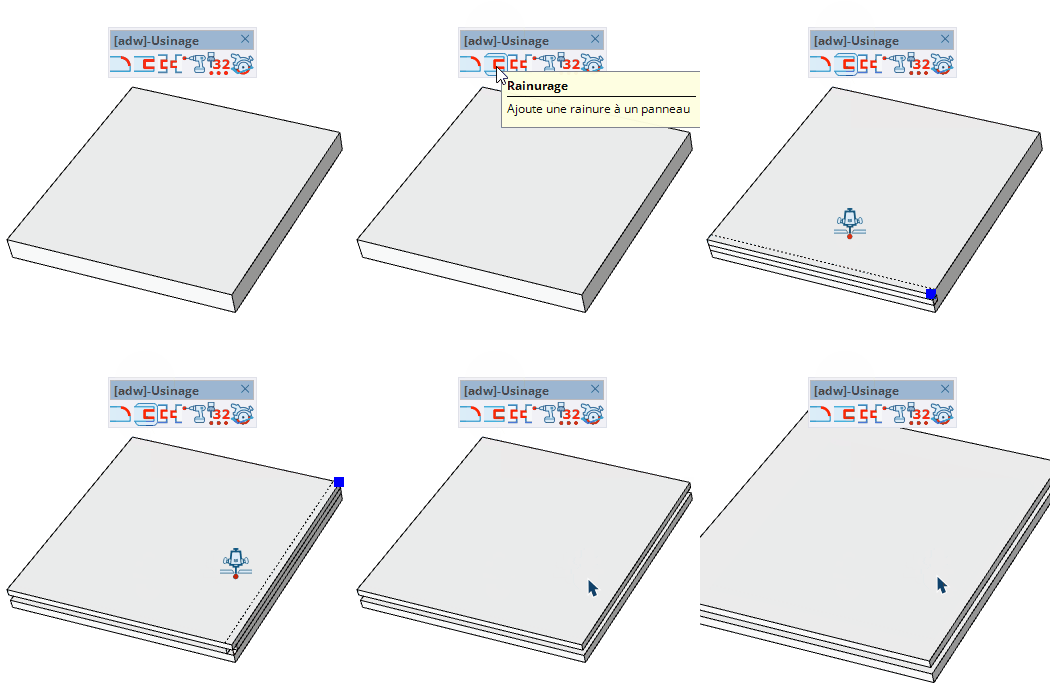
Apply a groove (dado) along one or more edges of a panel using a profile follow-me path.
shoulder_1 ; shoulder_2 — setback distance from each end of the edgeparement_distance ; groove_width ; groove_depth — groove profile dimensions12 changes only the 1st parameter, ;0.2 only the 2nd, ;;0.4 only the 3rd.

