Molding Tool
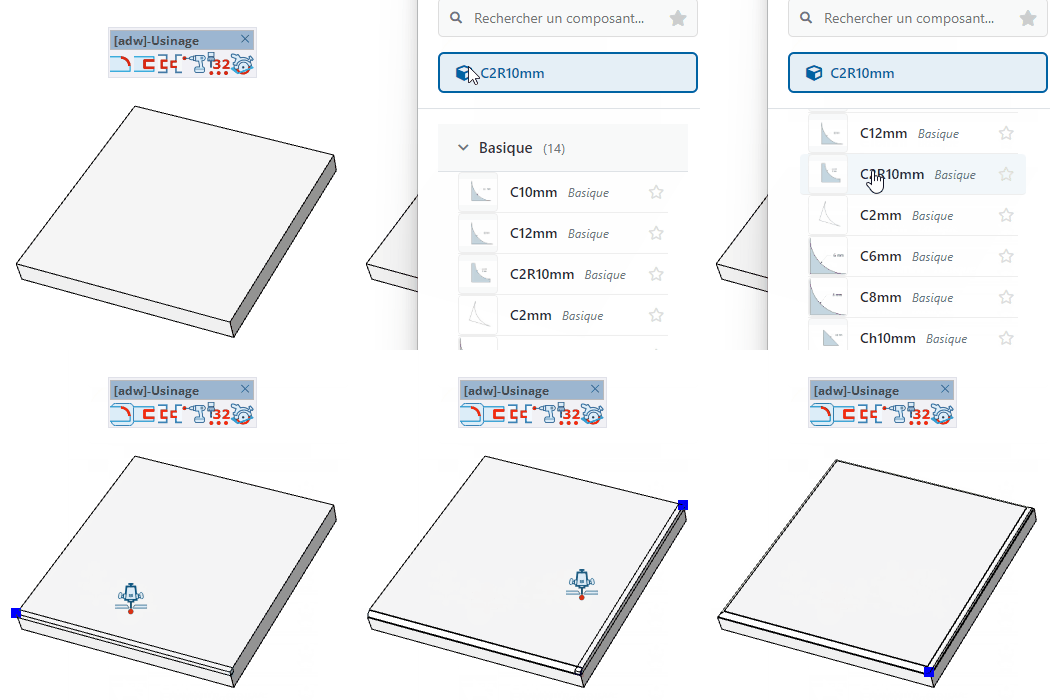
Apply a molding (raised profile) along one or more edges of a panel using a profile follow-me path.
How it works
- Hover over a panel face — the closest edge highlights
- Enter shoulder values (shoulder 1 ; shoulder 2) in the VCB, then click an edge to add it to the path
- Continue clicking connected edges to extend the molding path
- Double-click to apply the molding to the entire face loop in one operation
Keys
- Shift = Apply molding to the entire face loop (no shoulders)
- Ctrl = Apply molding along the contour of connected panels
- Esc = Cancel the operation
VCB input
- On a face:
shoulder_1 ; shoulder_2 — setback from each end of the edge
- Off a face:
tool_rise ; guide_forward — molding profile dimensions
- Partial entry: a parameter left empty keeps its current value —
12 changes only the 1st parameter, ;0.2 only the 2nd.
Tips
- The molding profile (rise and forward) can be adjusted before clicking any edge
- The same molding is automatically mirrored to all identical panel instances
- Use Shift for a closed-loop molding around the entire face perimeter
- Use Ctrl to follow the contour across multiple adjacent panels