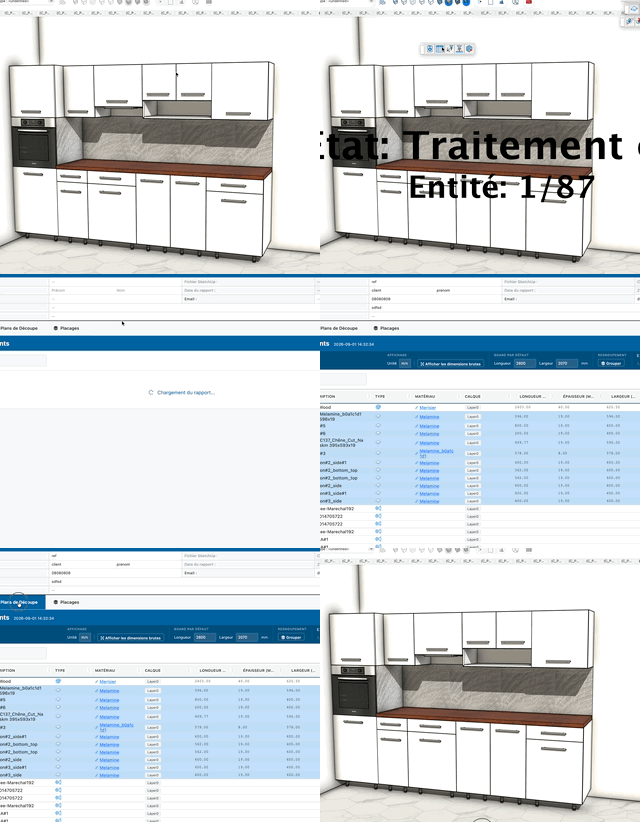
Component Report
Analyzes the selection (or the whole model when nothing is selected), lists panels, solid wood, assemblies and hardware, then opens the Component Report window: cutting list, pricing, material checks and cutting plans.
How it works
- Select the components or groups to analyze — with no selection, the whole active content of the model is processed
- Start the tool: the scan begins and displays State and Entity: n/N in the center of the view
- Click during the scan to interrupt it
- Once the scan is done, the Component Report window opens automatically
The Component Report window
Title block
Header of the cutting list, printable with the Print button.
- Editable fields: Reference, Client (first / last name), Phone, Email, Address, Notes — saved in the project information
- Read-only fields: SketchUp file and Report date
Components tab
- Grid: No., Description, Type, Material, Layer, Length, Width, Thickness, Price, Quantity, Total price, Level. Columns are sortable and filterable
- Search to filter rows, with the Total price recalculated according to the current filter
- Price: double-click the cell to enter a price — it is written on the definition and propagated to every row of that definition
- Material: clicking the cell opens the boards manager on the matching material
- Rows in error: a "+" button offers to create the missing thickness, material, veneer or edge banding in the catalog; when several rows share the same issue, the fix can be applied to all of them at once
- Exports: CSV and Excel buttons in the toolbar
Display settings (gear icon)
- Unit — display unit for dimensions
- Oversize — default oversize applied to raw dimensions (5 mm by default) when no oversize is defined on the catalog board
- Raw dimensions — toggles between net sizes and cutting sizes (length and width + oversize; thickness gets none)
- Default board — length and width used when the material has no associated board
- Grouping — Group merges identical rows; the Dimensions & material, Parent and Layer criteria refine the grouping
- CSV export — destination folder for CSV exports
Cutting Plans tab
- Optimize generates the cutting plans; each source panel appears in a sub-tab with its diagram
- Optimization settings: kerf, minimum offcut dimensions, criterion (minimize waste / minimize the number of panels / balanced) and maximum optimization time
Veneers tab
- Optimize veneers computes the cutting plans for veneers and edge banding, presented the same way as the panel cutting plans
Help tab (?)
- Details the recognized component types (Panel, Solid wood, Assembly, Veneer, Edge banding, Miscellaneous), how prices are computed and the raw dimensions rule
Keys
- Left click = Interrupt the running scan
- Esc = Cancel the operation
Tips
- Select a cabinet or a sub-assembly before starting the tool to restrict the report to that part of the project
- A purchased component (handle, hinge, assembled drawer) shows up as Miscellaneous as soon as a price is set on its definition
- Fix the rows in error before optimizing: a material or a thickness missing from the catalog skews the cutting plans
- The title block is shared with the Project information tool: filling it once is enough for every report
- The window stays open while you work in SketchUp; running the tool again updates the report