Light Cone Tool
Lighting

Light Cone Tool

Place a light cone (spotlight) in the model with adjustable height, radius and color temperature.
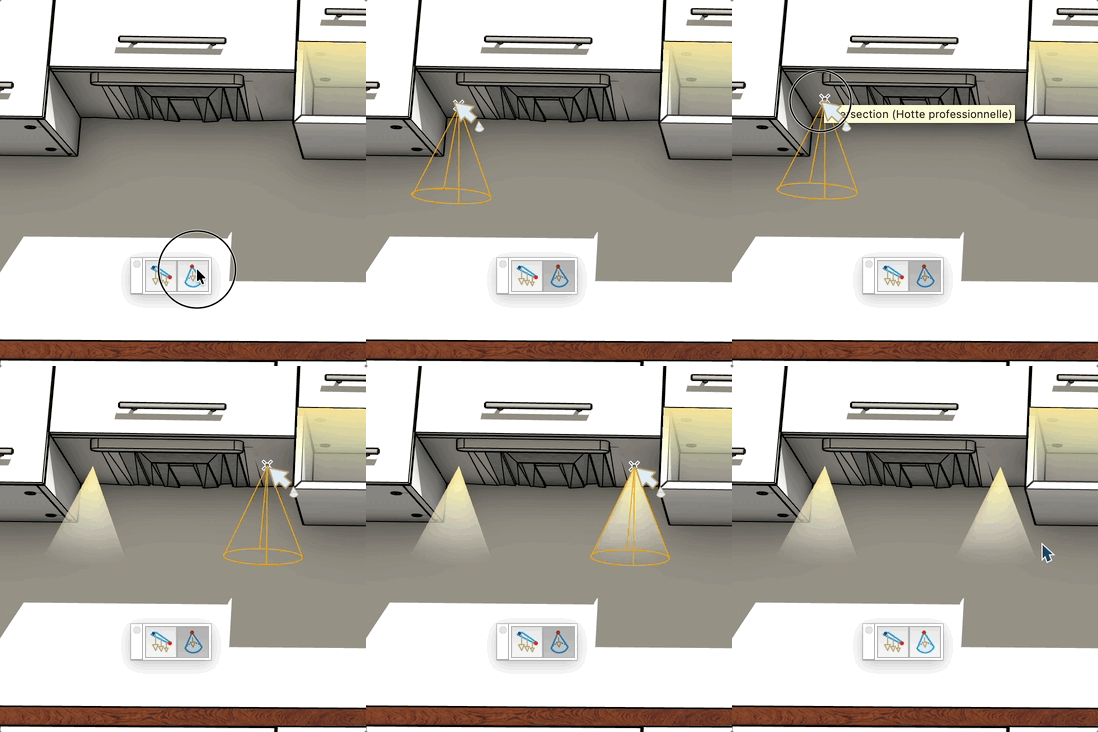
Video demonstration

Demonstration

Light Cone Tool

Place a light cone (spotlight) in the model with adjustable height, radius, and color temperature.

How it works

  1. Set the height and radius in the VCB (height ; radius), then click to place the light cone
  2. Adjust the color temperature in the temperature dialog that opens automatically

Keys

  • Esc = Cancel the operation

VCB input

  • height ; radius — height of the fixture above the surface and radius of the light cone

Tips

  • The color temperature dialog lets you choose warm white, neutral, or cold white
  • The cone snaps to any point using standard SketchUp inference
  • Height and radius values are saved between uses

Try this tool for free

AD Wood Free Trial

Fill out this form to receive your free download link.

Thank you for your request!

Your download link is ready. The download will start automatically.

Download Now